
In this Laravel tutorial titled “Laravel 12 PDF to text reader step-by-step guide”, we will build a simple PDF to Text Reader application in Laravel using the Spatie PDF-to-Text package. This guide walks you through installation, file upload handling, text extraction, and displaying results.
Table of Contents
Step 1: Install Fresh Laravel Project
In this step, we will install a fresh Laravel project. If you already have one set up, you can skip this step.
Run the following command to create a new Laravel project:
composer create-project laravel/laravel pdf-reader
Navigate into your project directory:
cd pdf-reader
Step 2: Install Spatie PDF-to-Text Package
Now, install the Spatie PDF-to-Text package, which allows us to extract text from PDF files:
composer require spatie/pdf-to-text
Read Also : Laravel 12 CRUD With Vue JS 3 Tutorial Step-by-Step Guide
Step 3: Handle File Upload and Read PDF Content
In this step, we create a controller to handle file uploads and extract PDF content.
Run the following command:
php artisan make:controller PDFReaderController
Now open: app/Http/Controllers/PDFReaderController.php and add the following code:
<?php

namespace App\Http\Controllers;

use Illuminate\Http\Request;
use Spatie\PdfToText\Pdf;

class PDFReaderController extends Controller
{
    public function index()
    {
        return view('pdf_upload_file');
    }

    public function readPDF(Request $request)
    {
        // Validate the file
        $request->validate([
            'pdf_file' => 'required|mimes:pdf|max:2048',
        ]);

        // Upload the file
        if ($request->file('pdf_file')) {
            $file = $request->file('pdf_file');

            $filename = time() . '.' . $file->getClientOriginalExtension();

            $file->move(public_path('pdfs'), $filename);
            $path = public_path('pdfs/'.$filename);

            // Read the PDF file content
            $text = Pdf::getText($path);

            // Display the extracted text content
            return view('result', compact('text'));
        }

        return redirect()->back()->with('error', 'Something went wrong.');
    }
}
If you are on Windows and encounter the following error: Spatie\PdfToText\Exceptions\BinaryNotFoundException
then use below code and follow Step 8: Install Requirements (Poppler) to resolve this issue.
public function readPDF(Request $request)
    {
        // Validate the file
        $request->validate([
            'pdf_file' => 'required|mimes:pdf|max:2048',
        ]);

        // Upload the file
        if ($request->file('pdf_file')) {
            $file = $request->file('pdf_file');

            $filename = time() . '.' . $file->getClientOriginalExtension();

            $file->move(public_path('pdfs'), $filename);
            $path = public_path('pdfs/'.$filename);

            // Read the PDF file content
            $text = (new Pdf('C:\\poppler\\Library\\bin\\pdftotext.exe'))
            ->setPdf($path)
            ->text();

            // Display the extracted text content
            return view('result', compact('text'));
        }

        return redirect()->back()->with('error', 'Something went wrong.');
    }
Explanation:
- Uploads the PDF file
- Stores it in public/pdfs
- Extracts text using Spatie package
- Sends extracted text to result view
Step 4: Create Routes
Open: routes/web.php and add the following routes:
<?php

use Illuminate\Support\Facades\Route;
use App\Http\Controllers\PDFReaderController;

Route::get('/upload-pdf', [PDFReaderController::class, 'index'])->name('upload.pdf');
Route::post('/read-pdf', [PDFReaderController::class, 'readPDF'])->name('read.pdf');
Step 5: Create PDF Upload Form
Create a Blade file: resources/views/pdf_upload_file.blade.php and add the following code:
<!DOCTYPE html>
<html lang="en">
<head>
    <meta charset="UTF-8">
    <title>Laravel 12 PDF to Text Reader</title>

    <!-- Bootstrap 5 -->
    <link href="https://cdn.jsdelivr.net/npm/bootstrap@5.3.8/dist/css/bootstrap.min.css" rel="stylesheet">

    <!-- Font Awesome -->
    <link rel="stylesheet" href="https://cdnjs.cloudflare.com/ajax/libs/font-awesome/6.5.1/css/all.min.css" />
</head>
<body class="bg-light">

<div class="container mt-5">
    <div class="row justify-content-center">
        <div class="col-md-6">

            <div class="card shadow-lg border-0 rounded-4">
                <div class="card-body p-4 text-center">

                    <h3 class="mb-4">
                        <i class="fa-solid fa-file-pdf text-danger"></i>
                        Upload PDF File
                    </h3>

                    <form action="{{ route('read.pdf') }}" method="POST" enctype="multipart/form-data">
                        @csrf

                        <div class="mb-3 text-start">
                            <label class="form-label fw-semibold">Select PDF File:</label>
                            <input type="file" name="pdf_file" class="form-control" required>
                        </div>

                        <button type="submit" class="btn btn-primary w-100">
                            <i class="fa-solid fa-book-open"></i> Read PDF
                        </button>
                    </form>

                </div>
            </div>

        </div>
    </div>
</div>

</body>
</html>
Step 6: Display Extracted Text Content
Create another Blade file: resources/views/result.blade.php and add the following code:
<!DOCTYPE html>
<html lang="en">
<head>
    <meta charset="UTF-8">
    <title>Laravel 12 PDF to Text Reader - Extracted Content</title>

    <!-- Bootstrap 5 -->
    <link href="https://cdn.jsdelivr.net/npm/bootstrap@5.3.8/dist/css/bootstrap.min.css" rel="stylesheet">

    <!-- Font Awesome -->
    <link rel="stylesheet" href="https://cdnjs.cloudflare.com/ajax/libs/font-awesome/6.5.1/css/all.min.css" />
</head>
<body class="bg-light">

<div class="container mt-5">
    <div class="row justify-content-center">
        <div class="col-md-10">

            <div class="card shadow-lg border-0 rounded-4">
                <div class="card-body p-4">

                    <h3 class="mb-4 text-center">
                        <i class="fa-solid fa-file-lines text-primary"></i>
                        Extracted Text Content
                    </h3>

                    <div class="bg-dark text-light p-3 rounded" style="max-height: 500px; overflow-y: auto;">
                        <pre class="mb-0 text-white">{{ $text }}</pre>
                    </div>

                    <div class="text-center mt-4">
                        <a href="{{ url('/upload-pdf') }}" class="btn btn-success">
                            <i class="fa-solid fa-upload"></i> Upload Another PDF
                        </a>
                    </div>

                </div>
            </div>

        </div>
    </div>
</div>

</body>
</html>
Step 7: Test the Application
Start the Laravel development server:
php artisan serve
Now visit: http://127.0.0.1:8000/upload-pdf
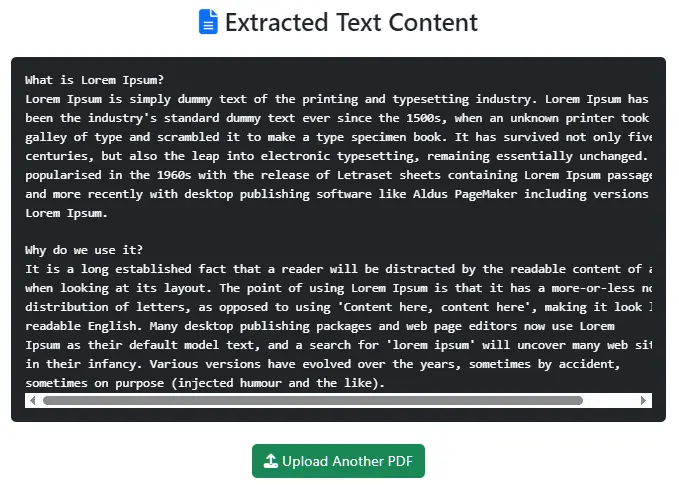
Upload a PDF file, and you will see the extracted text displayed on the result page.
Step 8: Install Requirements (Poppler)
The Spatie PDF-to-Text package depends on poppler-utils. Without it, you may encounter this error:
PdfToText\PdfCouldNotBeExtracted: PDF could not be extracted.
Windows Setup
If you’re on Windows, you might encounter:
Spatie\PdfToText\Exceptions\BinaryNotFoundException
Follow these steps:
- Download Poppler for Windows (latest release)
- Extract the ZIP file
- Move it to: C:\poppler
- Navigate to: C:\poppler\Library\bin
- Add this path to your Environment Variables (PATH)
Install on Ubuntu / Debian:
sudo apt-get update
sudo apt-get install poppler-utils
Verify Installation:
pdftotext -v
Conclusion
You have successfully built a Laravel PDF to Text Reader application. This project demonstrates:
- File uploads in Laravel
- Using external packages (Spatie)
- Extracting and displaying PDF content
- Handling system dependencies like Poppler
You can further enhance this project by:
- Saving extracted text to a database
- Supporting multiple file uploads
Frequently Asked Questions (FAQ)
Q1: What is the purpose of this Laravel PDF to Text Reader?
This application allows you to upload a PDF file and extract its text content using Laravel and the Spatie PDF-to-Text package.
Q2: Why am I getting PdfCouldNotBeExtracted error?
This error usually occurs when Poppler (pdftotext) is not installed or configured properly on your system.
Make sure you follow Step 8: Install Requirements (Poppler).
Q3: How to fix BinaryNotFoundException on Windows?
This error happens when the system cannot find the pdftotext binary.
You should install Poppler and add its bin folder to your system PATH.
Q4: Can this read scanned PDFs?
No, this method only works with text-based PDFs.
For scanned PDFs, you need OCR tools like:
Tesseract OCR
Q5: What should I do if pdftotext -v is not working?
It means Poppler is not installed or PATH is not set correctly.
Reinstall Poppler and verify your system PATH configuration.